Tag: dropbox

  • Six new iOS apps I actually use

    I’m assuming you’re already using my 3 favorite apps, Evernote, WordPress & Dropbox.

    Here are sixapps I’ve started using recently that I think you should try out. 

    Wunderlist (iPhone, iPad, and Mac) – I’ve finally found a to-do list app that I love! It has a nice and simple interface, reminders, and syncs with all of my devices.

    Skitch (Mac, iPad) – If you ever need to do a screen capture this is your app. Easily capture, make notes, draw on the screen, and share it with whomever you need to share it with. I love the iPad app… it’s really so easy to use that it’s fun! They just got bought by Evernote, so I expect to be able to sync it to my notebooks easier soon.

    ESPN Passport – (iPhone) This is a fun little app for sports nuts. If you’re watching a game, whether in the stadium or watching on TV, its allows you to talk smack with other people watching the game. It links to your ESPN account so it pulls in your profile and all of that stuff. (You can win badges and stuff like that, too) You can also share your smack talk via Facebook/Twitter. But I just like to take pictures of me and my kids at games.

    Square – (iPhone, iPad) As a small business owner I sometimes have the need to swipe a credit card and charge someone on the spot. Square is drop dead easy and the credit card rates aren’t that bad if you figure in that a merchant account isn’t needed, no monthly contracts, etc. You sign-up for free, they send you a little Square reader, and you’re good to go.

    Redfin – (iPhone, iPad) I’m not really in the market to buy a house but I do like to know what property in my area is going for. This app is sexy. It shows you all the houses available based on your parameters. And then it has a very simple, elegant layout to show you the properties. (And all the really important info, like taxes, schools, comps, etc.)

    Editions – (iPad) An AOL app that doesn’t suck? It surprised me too! This little app is gorgeous. You tell it your news preferences and each day it goes out and aggregates all the news you want. Then it lays it out like a magazine designed just for you. It’s beautiful, too.

    Bonus#1: Mustache Me (iPhone) I blame Brian Berry for this one. Instant fun. Add a mustache to any picture, share, beauty.

    Bonus #2: car2go PRO (iPhone) Car2Go is a car sharing service that is taking off here in San Diego. Basically, they are these little electric cars you can rent for $.35/minute to get around town cheap. The app helps you find and reserve them… which is super easy and fun!


  • What does your ministry have to do with Dropbox?

    Did you catch that? Steve Jobs invited Drew Houston, CEO of Dropbox, to his office to play Let’s Make a Deal. And Drew Houston walked away.

    Why? In the written interview for Forbes and the video above you get clued into Houston’s reasoning.

    • He said we were a feature, not a product.” Apparently, Jobs was thinking that Dropbox would be a great feature… what is now iCloud. (Which is buggy and I’ve turned off, by the way.)
    • We are excited about the prospect of building a really great and independent company.

    Those two statements have great meaning if you understand how the tech industry works. In the tech ecosystem there are whales and minnows and only a few medium-sized fish in the middle. The whales go around and gobble up anything that looks tasty. If you are a minnow your goal, largely, is to get swallowed by a whale. Virtually no company survives a full life cycle from minnow start-up to medium-sized company to big great, independent company. The whales have too much money and too many lawyers. (see Patent Troll)

    While at first blush every tech start-up I’ve ever met will tell you that they are excited about their product line and would love to grow into a great company, the reality is that acquisition is probably their exit strategy. If you asked them, “Would you sell to Google?” Almost everyone will say yes because as they grow they realize a couple of things.

    • They are great entrepreneurs/inventors and not great managers of people.
    • They have a product and not a company. It might be their 4th product which hits and makes them a household name but they can’t see past the success of their first product.
    • They are starters and not sustainers. Their business model is short-sighted.
    • They want to cash out to get billions, bottles, and babes.

    What does this have to do with people in ministry?

    • If you want to build a great ministry you have to keep innovating. You can’t get so hung up on perfecting your first “product” that you stop innovating altogether and never find the thing that hits.
    • If you want to build a great ministry you have to be a great manager of people.
    • If you want to build a great ministry you have to sustain. Stop looking for a better job and make your job the best job you could ever get.
    • If you want to build a great ministry you better forget about billions, bottles, and babes.
  • Slides: Doing youth ministry on the move

    This is a presentation I made last month at the East County Youth Workers Network meeting. Maybe it’ll be helpful to you.

    Here’s some of the content that goes with it.

    Slide 1:

    With the rapid adoption of smart phones, iPad, and hundreds of thousands of cheap/flexible apps being developed, I am quickly seeing youth workers realize that they can do more on the go than ever before.

    My prediction is that we will begin to see more and more youth workers go officeless in the next five years.

    For years we have lamented that we didn’t go into youth ministry to be a desk jockey. Finally, the technology is there (and affordable) to the point where we can be in the field full-time, working with teenagers where they are.

    Slide 2:

    This stuff isn’t going to go away. So rather than whine about the impact of media, I recommend going on the offensive and doing our best to educate parents and students on best practices of a digital life.

    For students:

    • Technologies that take off for students are really all about them and their life. From an adult perspective that sounds entirely selfish. (Because it is self-centered) But we need to remember that adolescents are developmentally limited to only think about life from their perspective. So when talking to students about technology, bear this in mind. Teach them things that will make them look good.
    • Trend-wise, I’m still seeing tons of activity amongst students on Facebook. At the same time, text messaging is infinitely more private and infinitely move mobile-friendly. So texting is still king. But I’m also starting to see pockets of students taking to Twitter. They aren’t using it in the way adults are though. They tend to have tight-knit clusters of friends who all have private accounts. For them, it’s a group texting service.
    • Lastly, it’s important to realize that students are students… they are still learning. Which means you need to teach them what to do and why. There’s been a lot of talk about sexting, I think a big reason it is getting so many people in trouble is simply ignorance about how digital files can go viral and how something so innocent and sweet can do a lot of damage to you for a long time. Yes, I said “sweet.” I think a lot of guys/girls are exchanging pictures to flirt. They just don’t have the same boundaries you or I do.

    For parents:

    • Technology is not bad. By it’s definition, it is neutral. It’s what you do with it that makes it good or bad.
    • This stuff isn’t going away. You don’t have to be an expert to be a good parent. But you can’t pretend it’s not there any more than your parents pretended they didn’t know what to do with your beeper.
    • I’m not a big fan of filtering the internet. I really feel like that creates a false sense of security for parents. And if you ask any kid over about 10 years old, they know how to disable the filters at school. I’d rather see parents focused on teaching good practices like only using computers/smart phones in public areas of the house.
    • There’s an assumption that if you don’t know more about the technology your children are using that you can’t teach them how to use it appropriately. That’s just not true.

    Slide 3:

    Let’s turn from technology use to how you can use technology to become more a productive youth worker.

    Slide 4:

    If you want to ditch your office, you’ll need to transition to cloud-based applications. All that means is that your data no longer lives on a single computer in your office or on your laptop, instead it is stored in a web-server and is accessible anywhere you have web access, on multiple devices. (Phone, laptop, even a guest computer with an internet browser.)

    Here are some cloud-based tools I’m using right now that make me more mobile:

    • Evernote – A note-taking app that syncs with all of my devices. I’ll never say “ugh, that Word doc is funky” ever again.
    • Springpad – This also has a note-taking feature. But I use Springpad for bookmarking web-content I want to come back to later. (Here’s my account) This is also amazingly helpful for event planning, meal planning, shopping lists, etc. It’s HTML5 based, which is just nerd-speak to say that it’s built to work with any web-enabled device and isn’t limited to iPhone or Android on the mobile side.
    • Dropbox – I store all of my important files on Dropbox. It allows me to not only access them from anywhere, it also makes it super easy to share. Dropbox is great if you have multiple people working on a worship service or something like that. Everyone can just save their work in the same folder and everyone can continually have access to the same stuff. I never use our work server anymore. Everything is on Dropbox.
    • Google docs – The original big player in the cloud-based app world. I use Google docs for any document I’m going to collaborate with others on. It has all of the same features as Microsoft office, except it lives in the cloud, is free, and you can add multiple authors in a jiffy.

    Slide 5:

    Larger ministries tend to move quickly into a project management mode. This just means that one person isn’t responsible for an entire project… they have to collaborate with multiple people. Most of my work at Youth Specialties and McLane Creative is tracked through project management software in an attempt to keep all of the knowledge out of our email system!

    Here’s three that I’ve used.

    • Basecamp – This is the gold-standard project management utility. It has lots of deep features, is mobile-friendly, and if you are working with outside contractors there is a good chance they are familiar with how to use it. Everyone uses it! The downside is that it isn’t free.
    • Google groups – Google groups has many of the same features as Basecamp. It has just never taken off in the project management world. I don’t really know why. You can use it in much the same way, and it’s free.
    • Collabtive – I use Collabtive at McLane Creative for project management. It’s very similar to Basecamp, is free (open source) and lives on my webserver. That said, it’s not a novice utility to administrate. So if you don’t have someone confident with PHP, mySQL, and available space on a webserver, it won’t work for you.

    Slide 6:

    Last but not least, here are some other service worth looking at to improve your communication with parents, students, and your team.

    Text-based

    • Groupme – Groupme is a free, group-based, text messaging service. I’ve used it a little and really like it. Essentially, you just add people to a group, the group is assigned a phone number, and people can text the groups number and instantly notify everyone else in the group. The upside is that it’s free and full of potential. The downside is that it’s “reply to all.” If you wanted to try this out I’d recommend trying it with your adult volunteer group first. It could get crazy with a large group of students… fast!
    • Google voice – This is basically an alternative to giving your students your phone number to text. Google voice is 100% free, has a mobile and web interface, and works great. Another cool use for this for youth workers would be that it’s pretty easy to share responsibilities for responding to texts with your team.
    • Tatango / SimplyTXT – Both of these are fine if you are looking for more of a professional grade group texting service. Both are great and both cost money.

    Other online communication apps for youth workers

    • Facebook groups – Groups recently got an overhaul. There are some cool features there for you. It’s basically a profile for your ministry. The upside is that there’s a high likelihood all of your students are already on Facebook a lot and familiar with it.
    • Mailchimp – Email is not dead. Mailchimp is the industry leader in email marketing. What I love about Mailchimp is that it isn’t just an amazing application… it’s free for lists under 2,000! (Which would be nearly every youth group in America!)

    Got questions? I’ve got answers.

  • Three New Mac Apps

    I’ve got three quick apps for the Mac to share. All of them are free , freemium, or stinking cheap. Maybe they will be useful for you, too?

    dropbox-logoIf you are anything like me– your work computer is a bit of a mess. I’ve got all sorts of work files mixed in with personal files, mixed in with stuff that I just used for a blog post or something like that. Keeping it all orderly and seperate is a big problem. But I think I’ve found something to help!

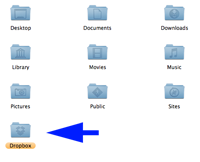
    dropbox-installDropbox basically installs a remote drive on your computer for storing files online instead of on your computer. There are other things, namely MobileMe, Mozy, or even a webdisk installed through your hosting service that can do the same thing. But I’ve found them to be either too expensive for what I need or cumbersome. (i.e. Not friendly to the Mac) But I like Dropbox because of its apps. Once you install the free software on your computer (mac or pc) and link your account it basically just runs in the background as a folder on your computer. When I put a file in the folder, it copies it up to the secure server, and copies it down to other linked computers. This all happens automatically, no tech skills required. If you are sharing an internet connection with people you can even throttle it. Once set up, I can access the file on another linked computer (like my home computer) or even my iPhone. I can even share files through the app… I just select the file or folder I want to share and it emails the person with a link. It’s a pretty rad little tool. Up to 2 GB of storage is free. (Plently for me.)

    tinygrab-logoI need to show people screenshots all the time. Whether I’m updating someone on the progress of a design, or putting together a tutorial, or if I just want to show someone something from the internet… I’m doing screenshots all day long. Command-shift-3 has long been both my friend and enemy. I could screen grab easily, but I’d always have to open up PhotoShop to clip out stuff I didn’t want/need the recipient seeing.

    I picked up TinyGrab as part of a recent MacHeist. This little beauty basically allows me to screen grab only what I want, and in the same action automatically uploads it to a server and gives me the link. By doing a command-shift-4 shortcut I get a little cursor that allows me to highlight what I want to grab. When I’m done it snaps the picture and uploads it. An instant time saver!

    sofortbild-logoYou may have noticed my recent fascination with time lapse movies. I think it’s a profound and fun way to capture the worlds movements. (more coming!) I’ve wanted to get software to do this with my Nikon for quite a while. But it was tough to justify spending $180 for Nikon Camera Control 2. It’s not like I had a real reason to do this… I just thought it’d be fun!

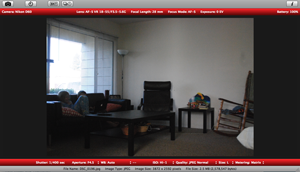
    sofortbild-screengrabThat’s why I was so stoked to discover Sofortbild. It’s essentially the same thing– and it’s free! (Sorry Canon freaks, this is just for Nikon right now. And it’s just for Mac.) Basically, I can set up my camera where I want to shoot, connect the USB cable, and then completely control the camera with my computer. When the pictures are taken (either remotely or manually on the camera) the images are transfered directly to a folder on my computer. You can shoot directly with your computer, manually, do a timed picture (like for a family portrait) or set-up intervals (time lapse). It’ll even import right to iPhoto! Now if it had an iPhone app where I could start or stop interval shooting remotely, that’d be crazy cool.

    So, there you go. Three quick new apps for you Mac users to try out. They are all free, freemium, or cost just a couple bucks.

    What are some new apps for the Mac you are discovering?