Tag: apps

  • Six new iOS apps I actually use

    I’m assuming you’re already using my 3 favorite apps, Evernote, WordPress & Dropbox.

    Here are sixapps I’ve started using recently that I think you should try out. 

    Wunderlist (iPhone, iPad, and Mac) – I’ve finally found a to-do list app that I love! It has a nice and simple interface, reminders, and syncs with all of my devices.

    Skitch (Mac, iPad) – If you ever need to do a screen capture this is your app. Easily capture, make notes, draw on the screen, and share it with whomever you need to share it with. I love the iPad app… it’s really so easy to use that it’s fun! They just got bought by Evernote, so I expect to be able to sync it to my notebooks easier soon.

    ESPN Passport – (iPhone) This is a fun little app for sports nuts. If you’re watching a game, whether in the stadium or watching on TV, its allows you to talk smack with other people watching the game. It links to your ESPN account so it pulls in your profile and all of that stuff. (You can win badges and stuff like that, too) You can also share your smack talk via Facebook/Twitter. But I just like to take pictures of me and my kids at games.

    Square – (iPhone, iPad) As a small business owner I sometimes have the need to swipe a credit card and charge someone on the spot. Square is drop dead easy and the credit card rates aren’t that bad if you figure in that a merchant account isn’t needed, no monthly contracts, etc. You sign-up for free, they send you a little Square reader, and you’re good to go.

    Redfin – (iPhone, iPad) I’m not really in the market to buy a house but I do like to know what property in my area is going for. This app is sexy. It shows you all the houses available based on your parameters. And then it has a very simple, elegant layout to show you the properties. (And all the really important info, like taxes, schools, comps, etc.)

    Editions – (iPad) An AOL app that doesn’t suck? It surprised me too! This little app is gorgeous. You tell it your news preferences and each day it goes out and aggregates all the news you want. Then it lays it out like a magazine designed just for you. It’s beautiful, too.

    Bonus#1: Mustache Me (iPhone) I blame Brian Berry for this one. Instant fun. Add a mustache to any picture, share, beauty.

    Bonus #2: car2go PRO (iPhone) Car2Go is a car sharing service that is taking off here in San Diego. Basically, they are these little electric cars you can rent for $.35/minute to get around town cheap. The app helps you find and reserve them… which is super easy and fun!

  • Clips, the newest app for youth ministry

    One direction I think youth ministry resources need to go is mobile

    In the latest edition of Immerse Journal I have an article called “Technology Swiss Army Knives” that’s all about apps that help you spend less time in your office and more time with students. I’d actually like to see apps for youth ministry get to the point where we could ditch our offices altogether. It’s not like any of us went into youth ministry hoping to maintain office hours. More on this concept later…

    Clips is one of those apps that is a great resource for on-the-go youth workers, small group leaders… even parents.

    About the creator – RJ Grunewald

    It was created by one of my long-time youth ministry network guys from Detroit, RJ Grunewald. He’s a middle school pastor who fell in love with the iPhone and started dreaming about how to use his phone for ministry. Back in 2008, fiddling around after church, he created an app that farts. (Perfect for middle schoolers!) He submitted it to the iTunes store as the WhoopieCushion app and it blew up. (Get it, blew up?) I actually heard about it because RJ called me for some advice about starting a business. It was perfect timing because YS was just starting to think about apps for ministry, too. Long story short, RJ built the MyGuitar app and Tough Topics. (Both successful, but now retired.)

    What is Clips all about?

    It’s really simple. You’ll be mad you didn’t think of it. If you have a set of Videos that Teach in your office– this is an updated and mobile evolution of that. (I’ve bought at least five sets of Videos that Teach over the years, it’s my most stolen resource.)

    The app has a library of popular movies with amazing and powerful clips. The app suggests a clip and provides Bible-based discussion questions and some suggested Bible verses. You can search by movie name or topic. You can save things as favorites so you can come back to it, stuff like that. In a future version he’s opening it up to the community a bit more by allowing users to suggest clips to include in the app. But there’s enough there to last you quite a while.

    It’s a great idea. And for any youth worker who is an app junkie, it’s a must-have. It’s available now in the app store for $2.99.

    It’s a resource you’ll want to make sure is in the hands of your small group leaders and parents, too. Help them turn movie time into worthwhile discussion. Tip: Use the iTunes “gift this” button and you can send it to the youth workers in your ministry. If you need a raise… gift it to your senior pastor.

    Last thing, I love the fact that RJ owns Clips. So literally, buying this app is supporting RJ and encouraging him to not only make this app better, but to make more apps like it.

    Question 1: What’s your favorite movie for teaching students?

    Question 2: If you have the app, what do you think?

    Full-disclosure — RJ is a client of The Youth Cartel. 

  • My most used iPhone apps

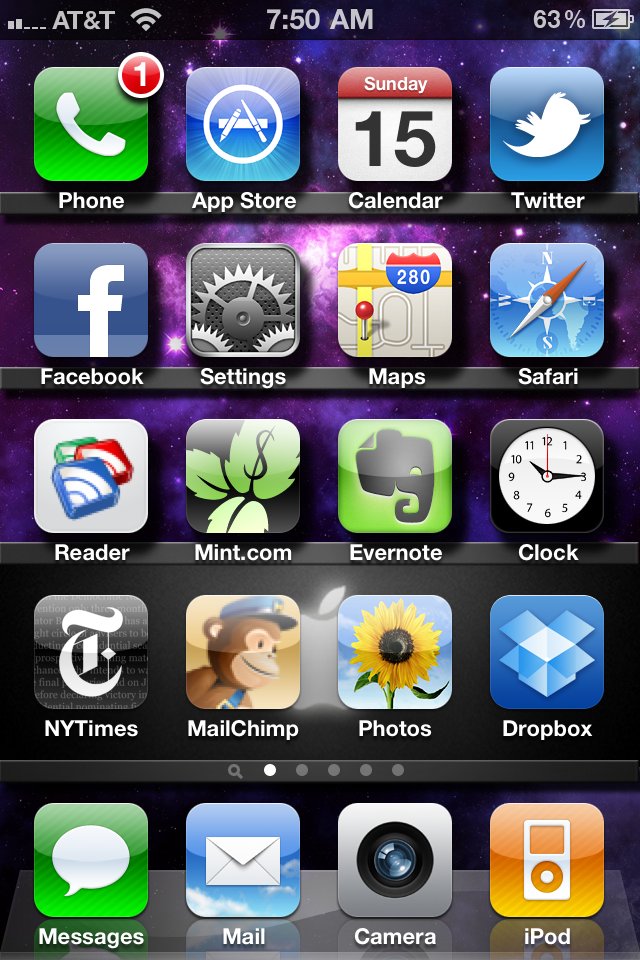
    My current homescreen
    click image to see high res version

    I almost never use my iPhone as a phone. Maybe 150 minutes per month. But I use it as a mobile computer constantly.

    To make it to the home screen of my phone an app has to truly be utilitarian. Rather than flipping through pages or searching or digging through folders, a home screen app is something I want easily available.

    The bottom bar

    The are sacred spots. And a non-Apple app has yet to get there. Texting, email, camera, music. These are my most used items.

    The home screen, all app are free

    Phone – I leave it on the homepage so that it still feels like a phone. But for a left-handed guy this is the worst spot on the home screen.

    App store – I’ll admit it. I check the app store a lot. I like to get updates, what can I say?

    Calendar – That thing runs my life. It synchs my work calendar and my Google calendar together. I don’t know how it works, but it is magical.

    Twitter I’m still bitter that I paid a few bucks for Tweetie 2 and then Twitter bought it and made it free. But this is, by far, the best and most stable Twitter app I’ve used. It’s a lot faster on iPhone 4. Which helps because I check Twitter several times per hour.

    Facebook I like the app almost as much as I like the web version. The app is solid. I just wish I could do more page admin functions.

    Settings – I’m always playing with settings. Turning a notification on or off. Or, more likely, helping someone figure out their settings.

    Maps – I use Google maps a lot. Why? Because I suck with directions.

    Safari – Yeah, this thing has a web browser. Crazy, I know!

    Google reader – I like to keep up on the blogosphere. For time managements sake I often look at Google reader while I’m on the train or in transit from point A to point B. I wish it had a simple “save to Delicious” plug-in. One day.

    Mint Mint tracks all of my families personal finances. This app and the service itself just keeps getting better.

    Evernote Any time I think of something that I am afraid I’ll lose, I jot it down in Evernote. Blog posts, shopping items, to-do list, product ideas, things to say, and the early alpha of any idea… all get put in Evernote. Once I synch the notes from my phone to the cloud, I can then get that same note in the desktop app for my Mac. Love it!

    Clock – I set timers for myself constantly. I know, I’m weird.

    New York TimesI love the Times and I love their app. I use a bunch of news apps that I keep in a folder. But the Times has earned its spot on my homepage.

    MailChimp Are you kidding me? Mailchimp is my right leg. It has quickly become one of my most valuable tools as a social media guy. They’ve got another app coming out soon that just might replace this app… or maybe the Chimp will have two coveted spots?

    Photos – I like to take pictures and videos with my phone. So keeping this app handy is practical.

    Dropbox When I work on my laptop, most of my valuable documents get stored in Dropbox. Dropbox is a cloud-based (free) application that allows me to have my important files on my computer, on my phone, and in the cloud… available whenever I need them, however I need them.

    What about paid apps?

    It might look like I don’t buy apps. I do. I just haven’t found a paid app that could replace these that are currently on my home screen. I like to keep the home screen full of utilities. So things move around based on what I’m doing in life. Traveling a lot? Tripit is going to sneak up there. Football season starts? I’m going to guess the Notre Dame app will be back on the home screen. You get the idea.

    What are apps that you use that I should give a try?

  • Three New Mac Apps

    I’ve got three quick apps for the Mac to share. All of them are free , freemium, or stinking cheap. Maybe they will be useful for you, too?

    dropbox-logoIf you are anything like me– your work computer is a bit of a mess. I’ve got all sorts of work files mixed in with personal files, mixed in with stuff that I just used for a blog post or something like that. Keeping it all orderly and seperate is a big problem. But I think I’ve found something to help!

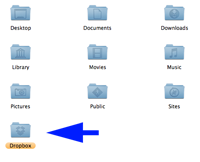
    dropbox-installDropbox basically installs a remote drive on your computer for storing files online instead of on your computer. There are other things, namely MobileMe, Mozy, or even a webdisk installed through your hosting service that can do the same thing. But I’ve found them to be either too expensive for what I need or cumbersome. (i.e. Not friendly to the Mac) But I like Dropbox because of its apps. Once you install the free software on your computer (mac or pc) and link your account it basically just runs in the background as a folder on your computer. When I put a file in the folder, it copies it up to the secure server, and copies it down to other linked computers. This all happens automatically, no tech skills required. If you are sharing an internet connection with people you can even throttle it. Once set up, I can access the file on another linked computer (like my home computer) or even my iPhone. I can even share files through the app… I just select the file or folder I want to share and it emails the person with a link. It’s a pretty rad little tool. Up to 2 GB of storage is free. (Plently for me.)

    tinygrab-logoI need to show people screenshots all the time. Whether I’m updating someone on the progress of a design, or putting together a tutorial, or if I just want to show someone something from the internet… I’m doing screenshots all day long. Command-shift-3 has long been both my friend and enemy. I could screen grab easily, but I’d always have to open up PhotoShop to clip out stuff I didn’t want/need the recipient seeing.

    I picked up TinyGrab as part of a recent MacHeist. This little beauty basically allows me to screen grab only what I want, and in the same action automatically uploads it to a server and gives me the link. By doing a command-shift-4 shortcut I get a little cursor that allows me to highlight what I want to grab. When I’m done it snaps the picture and uploads it. An instant time saver!

    sofortbild-logoYou may have noticed my recent fascination with time lapse movies. I think it’s a profound and fun way to capture the worlds movements. (more coming!) I’ve wanted to get software to do this with my Nikon for quite a while. But it was tough to justify spending $180 for Nikon Camera Control 2. It’s not like I had a real reason to do this… I just thought it’d be fun!

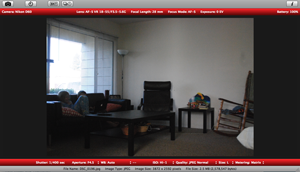
    sofortbild-screengrabThat’s why I was so stoked to discover Sofortbild. It’s essentially the same thing– and it’s free! (Sorry Canon freaks, this is just for Nikon right now. And it’s just for Mac.) Basically, I can set up my camera where I want to shoot, connect the USB cable, and then completely control the camera with my computer. When the pictures are taken (either remotely or manually on the camera) the images are transfered directly to a folder on my computer. You can shoot directly with your computer, manually, do a timed picture (like for a family portrait) or set-up intervals (time lapse). It’ll even import right to iPhoto! Now if it had an iPhone app where I could start or stop interval shooting remotely, that’d be crazy cool.

    So, there you go. Three quick new apps for you Mac users to try out. They are all free, freemium, or cost just a couple bucks.

    What are some new apps for the Mac you are discovering?

  • iPhone Apps

    Since I spend so much time thinking about and managing iPhone apps getting developed, I thought it would only be fair if you saw the types of apps I use on my phone.

    Sidenote: This is a repost. For some reason the post from 6/30/09 disappeared. It may looks as though I deleted 20+ comments from yesterday, but my server ate them. Sorry about that.

  • Top 5 iPhone Apps I Use

    As they say, my dock is full. Kristen and I have been iPhone users for a couple of months now. So far we love it! One unintended consequence of using iPhone is that our monthly cell phone bill actually went down. Never expected that.

    Like most users, I actually use the phone part of the iPhone very little. That said, I use the iPod and wireless device parts all day. As of right now, here are the 5 apps I use the most.

    tweetieTweetie. I should clarify. Up until last night my most used app was Twitterfon. But Twitterfon was stupid and decided to drop a bunch of ads on their latest upgrade. I hate silent upgrades that dump in ads. I mean, I get it that they need revenue and all, but don’t ruin an app to do it! Anyway, Tweetie is a great Twitter app. It allows me to manage all my various accounts.

    yelp-icon100x100Yelp. I already use Yelp to post quick reviews of stuff as well as read up on places I want to visit. Now when I’m on the go I can use Yelp’s community driven review sites to chose places to eat… and even find addresses to places that are hard to find. (I like stuff that’s way off the beaten path!)

    mint-iphone-iconMint. Kristen and I use Mint to track all of our finances. So having a Mint iPhone app is a total bonus. This allows me to keep an eye on our accounts, spending, budget, and investments anywhere I am. If you are a an iPhone user but don’t use Mint… you should really think about checking it out. It is pretty powerful.

    google-reader-iphoneGoogle Reader. Technically, I don’t think this is an app. But if you bookmark it in Safari it becomes this sweet little app on your dock. I use Google Reader all day, everyday for my job. So being able to scan through endless vanity searches, twitter searches, and of course blog posts is essential. I love being able to read, share, and comment on stuff no matter where I am. As a few friends have pointed out… they can tell when I’m on the trolley because I’m sharing a lot!

    facebook-iconFacebook. What social media person wouldn’t love to have a mobile Facebook that is, in some ways, better than the web version? I love posting pictures and changing my status with my iPhone. So much less clutter.

    A few people have asked me to put together a list of apps for youth ministry. Give me a few weeks and I’ll definitely be posting about that.